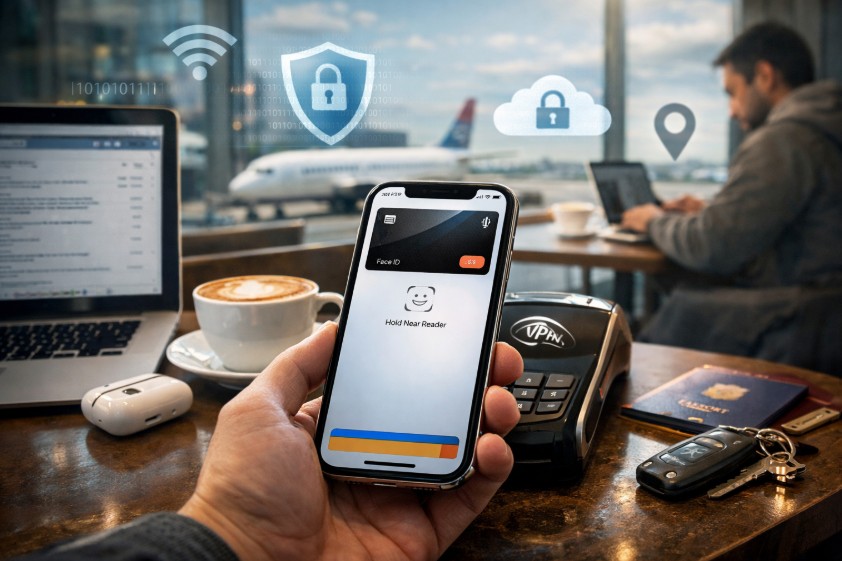
Think about what your phone really is these days. It’s not just a communication tool, it’s where you pay for groceries, manage work projects, navigate unfamiliar cities, and sometimes call for help in emergencies. Staying plugged into the world without exposing your personal information? That’s not optional anymore.
Every time you connect to sketchy airport Wi-Fi, flip between productivity apps, or tap to pay for your morning coffee, your iPhone is working overtime to keep you both fast and safe.
Here’s a stat that matters: Apple Pay holds 54% of the US in-store mobile wallet market. That means millions of people are betting on their iPhones for actual financial transactions daily.
Getting a handle on iPhone security features means first understanding what’s already working behind the scenes to protect you. Today’s iPhone privacy settings let you decide who gets to see your information, and iPhone secure connectivity stops your data from bleeding across networks you don’t trust.
Whether it’s tweaking iPhone Wi‑Fi security or nailing your iPhone VPN setup, the capabilities exist, you just need clarity on what actually moves the needle. Before we dig into switches you can flip right now, let’s talk about the bedrock security architecture that makes safe connectivity on the iPhone even possible.
How iPhone Combines Security and Connectivity?
Security Architecture That Lets You Connect Without Constant Worry
Apple didn’t tack security onto the iPhone as an afterthought. They built it into the foundation. This design philosophy means you can connect freely without stressing about invisible threats lurking around every corner.
Fast iOS Security Patches That Shut Down Network Exploits Quickly
Rapid Security Responses push out critical patches between full iOS releases, sometimes just days after researchers discover vulnerabilities. Turn them on under Settings > General > Software Update > Automatic Updates. If you travel frequently or work remotely, automatic updates are essential, though you’ll want your phone charging overnight with Wi‑Fi connected to prevent battery drain or cellular overages.
When you’re heading somewhere remote with unreliable coverage, grabbing an esim iPhone data plan helps you maintain solid connectivity for updates and secure browsing without depending on questionable public hotspots. Hardware defenses and quick patches create your outer security ring, but everyday privacy hinges on how you configure the permissions and tracking limits iOS hands you.
Hardware Layers That Protect Your Data During Every Connection
Inside your iPhone sits the Secure Enclave, a separate chip dedicated to storing Face ID biometrics, your passcode, and payment credentials. Not even Apple has access to what’s locked inside. When you approve a purchase or unlock your device on the subway, that authentication happens at the hardware level, completely isolated from apps and the main operating system.
Boot chain integrity validates every piece of software during startup, confirming it’s digitally signed by Apple. This blocks compromised code from intercepting your network activity. App sandboxing creates strict barriers, one app can’t peek into another’s data or touch system files without permission. That architecture limits tracking and information leaks, especially when you’re using shared networks.
Privacy Settings That Cut Down Tracking While Keeping Apps Useful
You shouldn’t have to cripple functionality just to protect your information. iOS lets you dial in exactly what apps can see and share, without breaking everything.
Permission Controls for Cleaner Network Activity
Location permissions carry more weight than most people realize. Switch rideshare and food delivery apps to While Using rather than Always, they only need to know where you are when you’ve got the app open.
For Photos, select Selected Photos to restrict what apps can harvest. Local Network permission deserves scrutiny; smart home hubs and printers legitimately need it, but most other apps absolutely don’t. Audit these under Settings > Privacy & Security.
Modern Anti-Tracking Tools for Browsing and App Data Sharing
App Tracking Transparency (ATT) requires apps to ask permission before tracking you across other companies’ services. Most users decline, which has tangibly reduced cross-site surveillance. iCloud Private Relay (included with iCloud+ subscriptions) masks your IP address and Safari browsing, though some work systems requiring visible IPs won’t play nice with it.
Mail Privacy Protection conceals your actual email address and blocks hidden tracking pixels embedded in messages. Hide My Email creates throwaway addresses for account signups, reducing both profiling and phishing exposure.
Account Security That Strengthens Multi-Device Connectivity
Choose a robust alphanumeric passcode, Face ID is convenient, but your passcode is the backup when biometrics don’t work. Turn on two-factor authentication for your Apple ID, and regularly review your list of trusted devices.
Power users can integrate hardware security keys (such as YubiKey) for physical authentication that’s essentially immune to phishing. Digital tap-to-pay transaction volume (Apple Pay and Google Wallet combined) is expected to surge roughly 150% by 2028, so hardening authentication today prepares you for an increasingly connected tomorrow.
Even with tight permissions and tracking controls, the instant your iPhone joins a network, whether cellular tower or Wi‑Fi access point, new vulnerabilities emerge that need their own defensive layer.
Network-Level Defenses for Truly Secure iPhone Connectivity
Cellular data is typically safer than open Wi‑Fi since your carrier’s network uses authentication and end-to-end encryption. But SIM swap fraud is a real threat, call your carrier to add a PIN or account freeze. On the device itself, reduce Lock Screen information exposure: turn off notification previews, reply shortcuts, and USB accessory access when locked.
Surviving Public Hotspots Without Getting Compromised
Connect only to recognized SSIDs and steer clear of generic names like Free Airport Wi‑Fi 2. Disable Auto-Join for unknown networks and delete risky ones after you’re done. Prioritize HTTPS-first browsing, most current browsers enforce this automatically, and avoid sensitive logins unless you’re behind a VPN.
When sharing through Personal Hotspot, use a strong WPA3 password and give your device a generic name (think Phone instead of John’s iPhone). Recognizing cellular and hotspot dangers is just part of the equation; the networks you use most regularly, home, office, public Wi‑Fi, require intentional setup to address common weaknesses.
Smarter Wireless Practices for Better iPhone Wi‑Fi Security
Your home router configuration is just as crucial as your iPhone settings. Deploy WPA3 encryption (or at minimum WPA2-AES) paired with a strong passphrase. Turn off WPS, keep firmware current, and isolate smart home devices on a guest network. Think about replacing your ISP’s default DNS with a reputable alternative like Cloudflare or Quad9 for improved privacy and performance.
iPhone Wi‑Fi Adjustments That Actually Matter
Private Wi‑Fi Address randomizes your device’s MAC address for each network, making location-based tracking harder. Leave it enabled unless you’re on a managed corporate or university network using MAC filtering. Limit IP Address Tracking cuts down on website profiling. For Ask to Join Networks, choose Ask to prevent automatic connections to whatever’s nearby.
Bluetooth and AirDrop in Dense Public Spaces
Set AirDrop to Contacts Only in public places, strangers shouldn’t see your device name or be able to send you unsolicited files. Disable Bluetooth when you’re not actively using accessories; older Bluetooth standards have documented security holes that can be exploited in crowded environments like conferences or terminals.
Regardless of how meticulously you set up routers and iPhone Wi‑Fi options, untrusted networks still leave your traffic vulnerable to interception, which is precisely when a well-configured VPN becomes critical.
Proper VPN Configuration for iPhone That Actually Works
Select a VPN service with third-party-audited no-logs policies, transparent corporate ownership, and servers located in privacy-respecting countries. Favor WireGuard or IKEv2 protocols for the best mix of speed and battery efficiency. iOS doesn’t natively support split tunneling, but you can set up On-Demand rules to auto-connect on suspicious networks and disconnect on verified safe ones.
Verify your configuration with a DNS leak test tool to ensure your traffic isn’t exposed.
VPN vs. iCloud Private Relay vs. HTTPS: Deploy VPNs for work access and travel Wi‑Fi. Private Relay handles casual Safari browsing adequately. HTTPS encrypts individual connections but doesn’t mask your IP address. For banking or sensitive account access on public networks, always route through a VPN.
| Scenario | Best Tool | Why |
| Public café Wi‑Fi | VPN | Complete traffic encryption |
| Casual web browsing | iCloud Private Relay | Built-in, minimal friction |
| Work apps | Work VPN | Compliance and access control |
VPNs protect data in motion, but contemporary threats also target your connectivity infrastructure itself, your phone number, carrier account, and SIM card, making eSIM technology valuable for both privacy and backup resilience.
eSIM Technology That Boosts Privacy and Connection Reliability
Keep your primary number separate from travel data by running an eSIM plan for mobile internet while your main SIM handles calls and texts. This isolation reduces damage if one line gets compromised. Temporary eSIM plans let you bypass public Wi‑Fi completely in airports or hotels.
eSIMs also mitigate physical theft risk, nobody can physically remove and duplicate your SIM. That said, carrier account hijacking remains possible, so implement account PINs and activate fraud monitoring alerts. Personal security is straightforward, but when corporate information lives on your iPhone, you’re dealing with compliance mandates, managed configurations, and Zero Trust frameworks that require a different connectivity mindset.
Secure Work Connectivity: Zero Trust Mindset on iPhone
Phishing attacks remain the dominant threat vector, even on enterprise-managed devices. Adopt passkeys whenever available, they’re phishing-resistant since they’re cryptographically bound to specific web domains. Never forward SMS or email verification codes to anyone.
Lockdown Mode strips away attachments, link previews, and sophisticated web technologies for users facing targeted attacks; it’s drastic, but warranted if you’re at elevated risk.
You’ve now walked through the complete protection spectrum, from hardware trust anchors to dual-eSIM backup strategies, so let’s compress this into a quick-start action plan you can knock out immediately.
Common iPhone Security Questions, Clearly Answered
1. Does the iPhone have its own security system?
iOS security is Apple’s comprehensive built-in framework protecting your iPhone against hackers, malware, and information leaks. It permeates every layer: hardware components, software design, even the app review process before anything reaches the App Store.
2. Best iPhone privacy settings to stop tracking without breaking apps?
Activate App Tracking Transparency, set location to While Using, select Selected Photos, and enable Private Wi‑Fi Address. These configurations reduce surveillance while preserving app functionality for normal activities like maps and photo uploads.
3. Does a VPN on an iPhone protect me on any network, including cellular?
Absolutely, a VPN encrypts all traffic regardless of connection type. However, cellular networks are inherently safer than public Wi‑Fi, so VPNs deliver the most value when you’re on untrusted connections or remotely accessing sensitive work systems.
Wrapping Up: iPhone Security and Connectivity Done Right
Staying connected shouldn’t mean leaving yourself vulnerable. Apple’s engineered substantial protections, but the most effective setup is one you actively manage and maintain. Spending a few minutes adjusting permissions, configuring a VPN, or adding an eSIM plan can prevent serious problems later. Your iPhone is remarkably capable, make sure you’re using it both intelligently and securely.